Do you make use of Google Webmaster Tools?

Everybody knows that if you want to run a successful website, Google is one of the most important factors to consider.

How Google understands, interprets and indexes your site, is crucial to where your site appears in the SERPs, and how well your site preforms in the SERPs (specifically the Google SERPs) can be a big determinant how much traffic your site receives, and ultimately how popular/successful your site it.

Google Webmaster Tools is a very useful tool which is often underused by site owners, in order to improve the quality and quantity of traffic that your site receives. In this article I will outline some of the key features I find useful, and some of the main reasons why I use Webmaster Tools.
Google Webmaster Tools

Why Google?

Google has a monopoly on the search market, with more than 90% of all searches being done through Google – according to StatCounter Global Statistics. Therefore the chases are the majority of traffic your site receives through search is from Google. It would be naive to ignore Bing and Yahoo’s search tools available to webmasters, however if you plan on just focusing on one, Google is probably the wisest choice.

Google is renowned for its major updates, with Penguin and Panda just two recent examples. Webmaster Tools can be a great aid in helping you understand how your site has been affected by the changes and why, so you can either keep doing things the way you are, or change your strategy.

See how well you are doing

The most recent Google Webmaster Tools update has divided the dashboard into five easy to understand sections: configuration, how your site is set up (locality, URL preferences, sitelinks etc.); health, how Google crawls your site and any errors, or malware it detects, and the URLs Google is denied from crawling; traffic, how do people find your site, which search queries do you appear for, who links to your content with what keywords and how does Google+ influence your visitors; optimization, tips and tweaks on how you could adjust your content and sitemap to improve your search position; labs, the latest tools Google are trailing that may be of use.
Webmaster Tools Options - Dashboard, Messages, Configuration, Health, Traffic, Optimization

Find crawler errors

One of the main reasons I use Google Webmaster Tools is because it lets me see how Google views and interprets the sites I administer. Therefore should there ever be an error, I am able to understand what Google is struggling to read/crawl, and therefore try to address the issue. Google lets you view and test specific URLs your robots.txt file is blocking Google from indexing and crawling – there is a difference. If you are denying it access to something by mistake you can then rectify this.

Google also lets you see any pages it cannot find. If you run a content management system based site (like one powered by WordPress) it is common that you will change things using the system, and unforeseen errors will be created leading to pages not being found where they either should be, or once were. Google lets you see when it can’t find pages, along with when it is denied from accessing pages, and when inadequate redirects are in place.

If you don’t use Google Webmaster Tools and don’t reduce the problems Google encounters when crawling your site, the likelihood is that your site will suffer in the SERPs – there isn’t much debate about that.

Labs

Google say that:

“Webmaster Tools Labs is a testing ground for experimental features that aren’t quite ready for primetime. They may change, break or disappear at any time.”

however this doesn’t mean that these tools should be ignored, in fact I think they are probably one of the most overlooked resources that Google provides webmasters with.

One of the current ‘Labs’ tools that I think is very useful is the ‘Site performance’ tool. Google may not have generated any information about your site, however if you are one of the lucky ones to be analysed, this can prove a very interesting tool. In Google’s own words:

“This page shows you performance statistics of your site. You can use this information to improve the speed of your site and create a faster experience for your users.”

As page load time becomes more and more important to users and therefore search engines alike, this page is of crucial importance for many people.

Improvements

You might not expect it, but in the ‘Optimization’ section, under the ‘HTML Improvements’ section Google will actually suggest areas where you could improve your code to ensure that your content is the best possible. Common errors Google suggests for correction include missing or duplicate title tags, (in most cases, and SEO no, no) and meta tag issues.

Traffic

The tools in the ‘Traffic’ section are probably the ones I use the most. ‘Search Queries’ gives you a fantastic incite into where your site is appearing in search results in all different locations across the world. If you pair Webmaster Tools with Analytics, this can become a lot more useful.

Links to your site and internal links lets you see your post linked to content, and the keywords that are linking to it. Generally speaking, if you want to rank well for a keyword, you need to have some links (internal and/or external) using that keyword.

The great thing about Google Webmaster Tools is that it integrates with many other Google programs, in order to improve your total control and visibility of your site. AdSense, Analytics, YouTube and AdWords are just some of the other Google products that Webmaster Tools integrates with.

That is just a quick overview of what Webmaster Tools has to offer. If you own a website, I strongly recommend that you explore it further to help improve your sites visibility in the search results, and to enable you to weather algorithm changes (like Penguin and Panda) that little bit better.

Do you use Webmaster Tools? What are your favourite features?

Useful apps for those in the busy world of business

This is a sponsored post. To find out more about sponsored content on Technology Bloggers, please visit our Privacy Policy.

If you work in business, then this article is aimed at you. If you have a busy diary which you need to keep track of, always seem to need to be paying someone, and like to check your stocks and shares from anywhere, at any time, then these three apps will (hopefully) be right up your street.

PayPal

The first app I am going to look at is the PayPal app. If you haven’t heard of PayPal, it is a free online service, which lets you send money to people via simply using an email address. I should point out that there are costs/fees involved, which is how PayPal make their money.

The PayPal app lets you request money, as well as send money. It also shows you your accounts recent activity, so you can keep track of your finances.

The app has a few cool and really useful features, that you should know about. The first cool feature is the ‘Bump’ feature, this feature lets you send or receive money to/from your phone, and someone else’s, simply by bumping/tapping your phones together. Pretty clever?

One of the really useful features I should also mention is the check deposit system. Usually, to deposit a check, you need to go to a bank, pay it in and then wait for it to clear. With the PayPal app, you can do the whole process a lot quicker, simply take a picture of the check and it will deposit it directly into your bank account.

Week Calendar

Nick recently wrote a post about how to climb the mountain to success in online business. A key part of Nick’s article was his ‘effective time management’ section. Nick wrote how you need to plan in advance, and allocate certain activities certain time, whilst not forgetting others.

To help you stick to your business schedule, online or off, the next app is the Week Calendar app. This app is much more advanced than the standard iPhone/iPod calendar, with loads of extra features and helpful tools. Check out the screenshot below to see the apps calendar interface in action.

A screenshot of the Week Calendar app The disadvantage of this app is that it costs £1.49, so you can judge for yourself if the interface and features (like handy drag and drop event tool) are worth the extra money.

City Trading Pro

The final app on my list is called City Index iPhone Trading platform Pro, which gives you access to market data from all over the world. The app is a spread betting app, which means that it enables you to trade on the price movements of thousands of markets, including shares and currencies.

Any good businessman has to take risks, and this app gives you a good way to make money from taking calculated risks. If you think a market value is going to rise then you can buy, and if you think it will fall you can sell. Each market has a sell and buy price – the difference between the two is what is referred to as the spread, hence ‘spread betting’.

To ensure you are always kept in the loop, the app gives you access to the value of shares from a whole host of different companies, currencies, commodities and indices including the FTSE 100, the Dax and the Dow Jones.

The app also lets you can set a stop loss, buy with one or two clicks of your finger, (it is even faster than doing it online!) view your orders, pending, completed and cancelled, create your own ‘watch list’ so that you have super quick access to the data you need, get detailed historical data, and so much more.

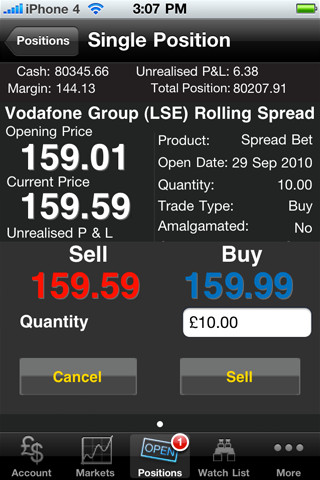
Below is a screenshot of the sort of information you get when looking at a firm.

A screenshot of the City Trading Pro appThe charting features on the app are really good, they are very detailed, and if you tip your iPhone on its side, the graph reorientates itself, to give you a clearer view of the data you are viewing.

You may be worrying about security, but there is no need. Probably the most comforting feature of the City Trading Pro app is that you can be confident that all your information and transactions are secure, so there is no need to worry.

Unlike the Week Calendar app above, this app is free, you just need a City Index trading account.

So, there is my list of apps! Feel free to try them out and leave feedback in the comments section, to let us know if you like them as much as me 🙂

Create a Google +1 button for an entire site

About a week ago, I posted about how Technology Bloggers now supports Google Authorship, so that writers can now claim posts as their own via linking them to their Google + profile. This article is also about the blog integrating further with Google’s growing social network: Google +.

Until recently it was not possible to create a sitewide Google +1 button, so that users could +1 your entire website; before you only used to be able to +1 the exact page you were on. However thanks to one of Google’s recent updates, it is now possible to +1 an entire site!

If you are a website/blog owner, then this article is probably going to be of particular use to you 🙂

I have recently added a sitewide Google +1 button to Technology Bloggers sidebar, which sits on the sidebar, next to our other social widgets.

Social media buttonsTo get a +1 button, you need to visit the Google +1 Button customisation page. There you can choose the style of your button, how big it is and the language used. What most people probably then miss is the ‘Advanced options’ link.

Advanced Options

If you click ‘Advanced options’, you get a whole new set of options drop down. One of these options is URL to +1. Usually when you place a +1 button on your site and a user clicks it, it +1’s that exact page. However if you enter your sites URL into the box and then get the code, when a user clicks your +1 button it +1’s your entire site.

Google +1 ButtonFor more information on the URL +1’d when users click your button, please see Google’s URL configuration explanation.

Sharing

When someone clicks +1, they will also be given the option to share the content/page to their circles. Usually Google will fetch the page title, and choose a selection of text and an image from the page users are currently on, however it is now possible to customise this too by customising the +Snippet.

Scroll down the page and you are able to select the type of page users are on, is it a local business, article, book, organisation, event, review etc.? You can also choose the title, description and image of the share. If you have created a sitewide share button, usually the button will offer users to share the current page, however by customising the +Snippet, you can make it so that your chosen title, text and image are what are shared, not the one Google automatically selects.

To implement the snippets you just have to add a few meta tags or some HTML code to your page.

Problems

One small problem I have come across when implementing this on Technology Bloggers is that you can’t successfully run 2 +1 buttons on the same page. That means that if you want to have a sitewide button, so users can +1 and share your homepage, and a button on every individual page, where users can +1 and share that page, it is not entirely possible.

The code of the button determines the URL to be +1’d, so it is completely possible that you can have 2 buttons, 1 for the page and one for the site, however the problem is with the +Snippet and the sharing, as both buttons inherit the meta data, meaning that when you share the individual page, it doesn’t share data from that page, but your generic sitewide text, image and title.

It isn’t really a major fault, and with a bit of clever scripting (and a lot of time) I am sure I could get it to work the way I want it to. I am sure Google will release an update at some point which allows you to have 2 +1 buttons, one for the site and one for the page, but in the meantime, we will just have to put up with it not working exactly as we would like it to.

UPDATE: I managed to resolve the problem easier than I thought. I added the +Snippet to the theme header, however told it only to appear on the homepage. The button is designed to fetch the +Snippet from the page users are on, unless the button is designed to +1 a specific URL, in which case, it goes to that URL to fetch the +Snipped – the homepage, where the +Snippet for the entire site is.

You and +1

So what is your opinion on the +1 button, do you use it in the same way/to the same extent the ‘Like’ and ‘Follow’ buttons, or is it not as important? If you own a website or blog, will you be adding a +1 button to it, and if so do you think it is better to have a sitewide +1 or a unique URL +1 button – or both!