Sponsored: A look at the Aspire S7 Ultrabook

This is a sponsored post on behalf of Acer. To find out more about sponsored content on Technology Bloggers, please visit our Privacy Policy.

Two weeks ago today I wrote a post which explored the rise of the Ultrabook – a new compact, portable and superfast variation of the laptop. Yesterday I wrote about Windows 8 and how it is changing the way we use our gadgets. Today I want to take a look at a laptop which I feel is a great example of how Windows 8 is changing the way we use out PCs.

The Acer Aspire S7 is a new, top of the range Ultrabook, which is even better than the Acer Aspire S5 that I talked about two weeks ago.

The Aspire S7 is designed to work seamlessly with Microsoft’s new Windows 8 operating system. How you may wonder? What makes the Aspire S7 so perfect for Windows 8?

The Technical Spec

The first feature which is primarily aimed at Windows 8 is the amazingly thin, extremely strong, easy clean scratch resistant Gorilla Glass. To find out more about Gorilla Glass, check out this Wikipedia page. The glass is a great way to take advantage of Windows 8’s touch screen capabilities.

The laptop is also the thinnest and lightest laptop that Acer have ever made, meaning that definitely it fits the criteria of an Ultrabook – super portable.

Being so thin, keeping cool is a problem. Acer use a very cool technology to get over this issue though. It uses two fans, (located at the back of the laptop) one to pull cold air in, and another to push hot air out.

Acer Aspire S7 air ventsA cool new feature the Aspire S7 is its electroluminescent backlit keyboard. Quite a mouthful that! What does it mean though? Well basically the laptop works out what the light level is, (where you are) and then it adapts the glow it places under the keyboard accordingly, so that you can see the keyboard and the laptop looks really cool, but it doesn’t create a nasty glare on the screen.

Take a look at Acer’s promo video which stars Megan Fox for more.

%CODEUMACERC2%

Okay maybe it can’t help us speak to dolphins, but it is a pretty cool new Ultrabook, which is a prefect example of the sort of technology that Windows 8 was designed to run on.

Is Windows 8 an attempt to create a united Windows?

It has been nearly two weeks now since Microsoft released its latest operating system: Windows 8. Windows 8 is probably the most extreme overhaul Microsoft have given its operating systems to date.

It would appear that Microsoft’s aim is to unify all devices with one standard operating system – which works on desktops, laptops, smartphones and tablets. Since the launch of Windows 7 just over three years ago, tablets have revolutionised the technology market – when Windows 7 was being developed, they didn’t exist. Windows Phone – the mobile operating system family – was also not around when Windows 7 was launched.

Until recently, the general perception of Microsoft was that it was falling behind in the rapidly evolving technology industry. Microsoft appear to have been aware of this, and that is reflected in the changes and developments they have made with Windows 8.

Tablets and smartphones are becoming widespread and more heavily depended upon than ever before, so Microsoft has moved to ensure that its new operating system works seamlessly with all our devices.

To do this the firm has simplified the range of operating systems that it offers. If you wanted to purchase Windows XP, then you could choose from XP Home, Professional, Media Center Edition and 64-bit Edition – among others. Vista made the choice even harder with Starter, Home Basic, Home Premium, Business, Enterprise, Ultimate and then other 64 bit variants to choose from. Windows 7 similarly offered many different versions of what is arguable the same operating system – give or take a few features.

Microsoft Windows 8If you want to buy Windows 8, your choice is much simpler: Windows RT, Windows 8 and Windows 8 Pro. Microsoft believes that those three variations of Windows 8 are all the consumer will ever need, no matter what their device or needs. Windows 8 and its three variations will (Microsoft believes) cater for all uses of the operating system (e.g. educational use, entertainment use, business use, etc.) and all devices that you might want to use it on – i.e. tablets, smartphones, desktops and laptops.

Windows 8 is a bold move by Microsoft, and it appears to be working for them – at least at the moment. I get the perception that the industry is a little taken aback by the release.

Major Features

There is no-doubt in the fact that Windows 8 is a major change from the operating systems we are used to from Microsoft, but what are the most notable changes?

  • No start button – for the first time since its introduction in 1995, Microsoft have decided to remove the iconic start button from the operating system. It is possible to get the button back if you want, but its not how the operating system is designed.
  • Touch-enabled – all three variations of Windows 8 are touch screen compatible. If your computer supports multitouch, then you will be able to control your PC via touch! All versions also support the conventional mouse and keyboard.
  • Cross device compatibility – Windows 8 can be run on tablets as well as laptops and desktops.
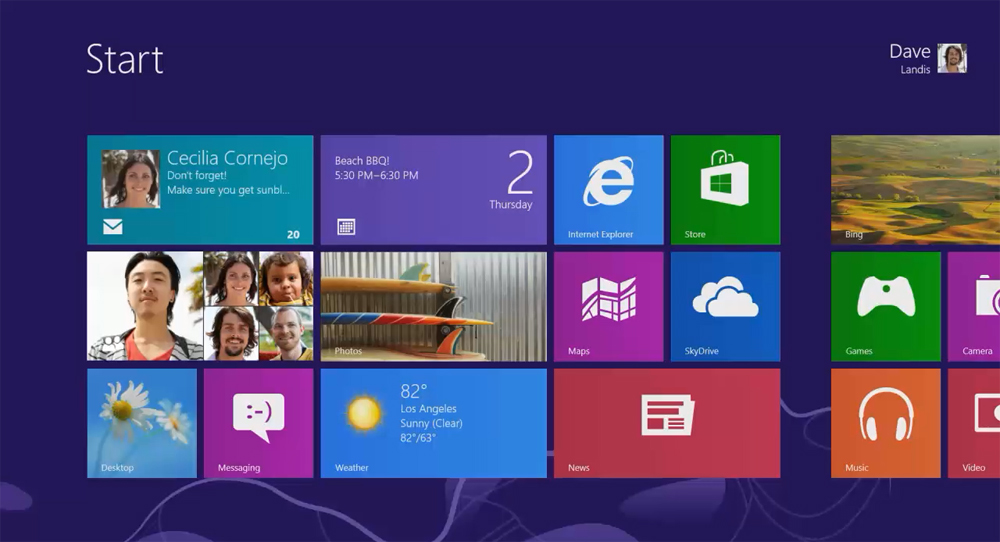
  • Tiles replace the desktop – no longer does the operating system revolve around the desktop, as it has done for so long, users now access software and applications via a start screen which is a series of ’tile’ style menus – similar to the way many smartphones operate. Windows Phone 8 and Xbox also run a similar tile welcome screen interface. The desktop is still there, just not the main focus.
Windows 8 tyle start screen

Windows 8 new tile style start screen

So, what do these changes mean to me and you? Well it would appear that there is a really big move towards more integrated, purpose built systems, or as they are starting to become known all in ones. This is mainly due to the touch screen capabilities that Windows 8 offers.

Devices which need fewer input devices (like mice and keyboards) and have inbuilt screens are really those best suited to Windows 8. If you want to see some examples, take a look at some of the all in ones from Ebuyer.

What are your thoughts on Windows 8? Do you like the idea of a more united Windows, or do you prefer your devices to work independently?

My experience of smarter living

This is the conclusion to a series of articles in which I explored Remote Heating Control – a technology of the future. Learn more about this series by reading the introductory article, called stepping into the future of smarter living.

Three months ago, I wrote an article in which I told you how British Gas had approached Technology Bloggers and asked if I would like to have Remote Heating Control technology installed for free, to test the technology as part of their don’t take our word for it (DTOWFI) campaign. Remote Heating Control is a technology of the future, and therefore they wanted reputable bloggers to test it out and give their honest feedback in order to help people (consumers) understand the pros and cons of getting the technology, and just generally what it is like to live with an intelligent (or smart) heating system.

Now my part in the DTOWFI campaign is coming to an end – this is the final article in my series. In this article I am going to summarise my journey with the technology, highlight the advantages and disadvantages and give you my honest feedback as to my experience of Remote Heating Control.

I hope that home-owners (potentially you) will be able to use this series to evaluate whether they feel they would benefit from installing Remote Heating Control.

Installation – The Start Of The Journey

My journey with Remote Heating Control started on Thursday the 16th of August, when a British Gas engineer called Nick came to my house and set up the hardware I would need to run the technology.

British Gas remote heating control

My British Gas smart linked thermostat

First Nick installed a wireless receiver near to my boiler. Then he removed my old thermostat and replaced it with a band new LED display, smart linked thermostat. Finally Nick installed a wireless hub which I plugged into my internet router. These three devices now communicate with each other and between them and the myHome internet portal, determine what my boiler should be doing. Clever huh?

For more info on the installation, check out my article on: how is Remote Heating Control technology installed?

First Impressions

In the next article I discussed what my first impressions of Remote Heating Control were. I explored the myHome online interface, from which I was able to control my heating online. Once I had my login credentials, it was easy to login and navigate around the site.

I was impressed with the amount of data and functions that are available to me. For example, I can see what the temperature has been in my house over the last 24 hours, or the last week, or even month. I am also able to see a weather summary, letting me know what the temperature has been like outside recently, and what to expect in the near future.

At the time of writing article three, I was yet to use the technology on a daily basis, as it was mid-September and still relatively warm.

Setting Up A Heating Schedule

Two weeks later (early October) I published my next article, in which I let you know how I found setting up a schedule for my heating. In summary, it was really easy, I just had to choose what temperatures I wanted my house to be and when, and then drag some sliders accordingly to make a rather complex, but easy to understand, schedule.

Remote Heating Control Schedule - Advanced

My heating schedule

My heating is now designed to fit around my daily variations in lifestyle. I get up later of a weekend, so my heating doesn’t come on until later. I go to bed later on Friday and Saturday, so my heating keeps my house warmer for longer. Instead of me having to adjust my heating to my daily life, my heating now knows what to do and when – meaning little need for interference from me. Check out the article for more on setting up a remote heating schedule.

Daily Changes

From mid-October, I was using my heating on a daily basis, however unlike last year, I wasn’t turning it on and off daily, or controlling it via the thermostat. My heating was doing all the hard work for me, turning itself on just before I woke up/got home, and turning itself off when I went to bed/left the house.

But what happened when my life didn’t fit perfectly around my heating schedule? Say I knew I was going to be home 20 minutes early, would I have to come home to a cold house? No I wouldn’t, thanks to the myHome smartphone app! It was really easy to download and install, and after logging in with my normal username and password, I was able to instantly adjust my heating. Quite literally I could change the temperature to 18°C and in the 10 minutes it took me to get home, my house would have warmed up.

I have found that there is nothing wrong with using my smart linked thermostat (my houses internal thermostat) to control my heating, it works very well in fact, however I just don’t seem to be using it. My heating schedule seems to be regulating things rather well for me, and when I want a change making, a quick alteration on the app, or a text is often much faster and easier.

For more on my views of what the technology is like to use, check out the: using Remote Heating Control on a daily basis article? The article also contains more information about the myHome online portal, what can be found there, what you can control etc.

A Scenario

I recently had the thought, what if I were to go on holiday? My heating is set to a schedule, which I would have to change. I wouldn’t want to have to change the schedule just for my holiday and then reset all the temperatures and time periods when I got home. Well I wouldn’t have to.

All I would need do is login to the myHome app and set my heating to ‘OFF’. It is usually programmed to ‘Auto’ which means stick to the schedule, but were I to set it to ‘OFF’ then it would just lie dormant. When I get back, on my way home, a quick SMS of ‘HEAT AUTO’ or just setting the heating to a specific temperature via smartphone or text message would get my house lovely and warm for my return. It seems that there isn’t much that this technology can’t handle!

Basically if there is going to be a disruption to your ordinary daily life, and you don’t want your heating to be wasting money on unnecessary heating, you can effectively stop the schedule. Likewise if you want your home to be hotter than it is you can override the schedule for that period.

The Money

One of the key factors in the technology for me is the money. I want to be green and save gas, whilst at the same time use the technology to help me save money. So, do I think that Remote Heating Control will save me money?

I haven’t any bills to compare yet, and the weather does vary year on year anyway, so it is hard for me to tell, but from what I have seen so far, my honest answer is yes, I think that the system will save me money.

The way I have programmed my system, it stops my house from getting really cold when I am not there, so it should take less gas to warm it up when I get home. Also the fact that I can instantly change the temperature via the internet, or my phone mean that if I am out of the house, I am still in control, whereas before I couldn’t be. Therefore any mistakes I make – like leaving the heating on when I am going out – I can fix before my boiler burns away my money heating an empty house.

To Conclude

I am really pleased that British Gas asked me to become a part of the DTOWFI campaign, as it has not only given me an insight into the future of smarter living, which I have been able to share with you, but also an amazing system which I now use to control my heating with.

I would personally recommend the technology, as I feel it has the potential to save me a lot of money, whilst helping me limit my environmental impact, at the same time as letting me live slightly more comfortable.

Thank you very much for following the series, I hope it has been interesting and educational. I also hope it has been useful to people who are considering getting a Remote Heating Control system.

I would also like to say thank you for all the comments I have received on the articles during the course of the series. I am more than happy to answer questions and give my opinions, just ask anything you may have either on the relevant post, or below.

My final thank you goes to British Gas for letting me test out a technology of the future.

… and that’s the end of my second series! 🙂