This is the fifth in a series of articles in which I am exploring Remote Heating Control – a technology of the future. Learn more about this series by reading the introductory article, called stepping into the future of smarter living.
Well Autumn really has begun, it’s now mid-October and the days are starting to get shorter. Trees are starting to drop their now golden brown leaves and there is a chill in the air that hasn’t been there since last winter.
Now that it is Autumn it is getting much colder, and this means that my heating is now really important to me. It’s that time of year when I want to stay warm, but at the same time am conscious to save energy.
Controlling My Heating Via Smartphone
I have recently bought a Samsung Galaxy S III, a smartphone powered by Google’s Android operating system. This means that I am now able to test out the Remote Heating Control app. British Gas have made an app for both Androids and iDevices, as I have an Android powered Samsung, I will be talking about the Android app.
The application is available for download from Apple’s App Store and from Google play, and is called myHome – after the online portal that you log into to control your heating.
The app is free to download, however (as you would expect) you need to have Remote Heating Control technology in your home for it to be of any use. You need internet access to be able to use the app, as it has to connect to the myHome portal in order to fetch real time data and store any changes you make; however that shouldn’t really be an issue though, as most smartphones now come Wi-Fi enabled and have optional 3G/4G. A smartphone isn’t really that smart without the internet!
Installing The myHome App
I was pleasantly surprised by how fast I was able to install and log into the app. I clicked on the Google play icon on my handset, I then searched for ‘myhome’ and third on the list was the app I wanted. I clicked on the app and pressed install and within seconds it had installed. I then ran the app, and it brought up a login screen, very similar to the one that can be seen if you log in to myHome on your PC.
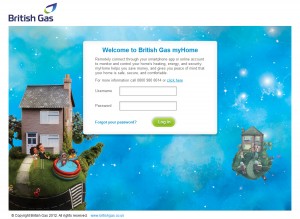
British Gas’s myHome log in screen
After I logged in I was presented with a very similar screen to the one I see when I am online. I was able to control the temperature of my heating right this moment. As you can see, I was at work at the time, so the temperature in the house wasn’t set very high, however it had been on earlier in the morning, so the house was still relatively warm.
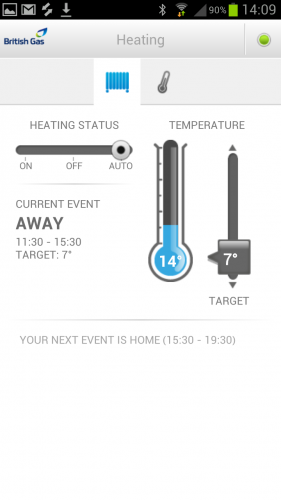
A screenshot I took of the myHome dashboard once I had logged in to the Android app.
The heating status was set to Auto, as it was following the schedule. It was really easy to change the temperature, which I did by moving the sliding on the right up and down with my finger.
If you click on the thermometer at the top you get a temperature summary – showing you the temperature in your house and outside.
I was a little disappointed that I couldn’t edit my heating schedule via my Samsung, however I suppose the settings could get a little fiddly on the smaller screen.
If I want to change the schedule, the easiest way is online. That said, it is really easy to change the immediate temperature via smartphone. I am happy with the app, it loads very fast and is well designed. The layout is clean, and easy to use.
Other Features Of The myHome Portal
In previous article I have discussed some of the main features of the myHome online portal, such as being able to see your heating status and the temperature, and being able to set up a schedule for your heating, however there are some other features which are of use.
Under the ACCOUNT heading you are able to change details like your name and email, along with your PIN (the code you have to text when you want to change your heating via SMS) and alerts. I have the system set to alert me via email in the case of a failure of any of the technology and also it will contact me with any warnings that may be relevant, like to let me know the battery on my smart linked thermostat is running low.
As I mentioned in a previous article, it isn’t ideal that my thermostat now needs a battery, that said, it has been running for around 3 months now, and still has 5/5 bars of battery, and if it does start to run low, I will be told in advance of the batteries dying.
If you click on the DEVICES heading, you will be taken to a page displaying all the devices that are currently in your system. On this page I can see my wireless hub and smart linked thermostat. Both are reading status ‘All ok‘ and have full battery and signal strength. My wireless hub is plugged into the mains, to the battery should always read full on that, as the power is mains supply.
Finally, if you click on the HELP heading, you are taken to a screen where there are various guides to help you use the software. If you ever get stuck you can either call British Gas, send them an email, or consult one of their PDF help guides. There is also a link to the app download pages on this page.
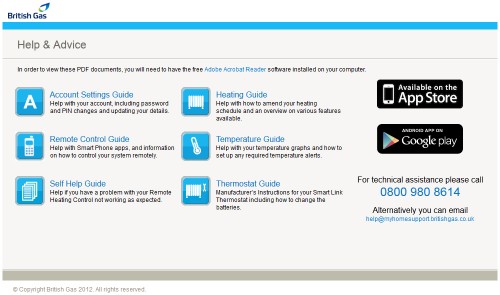
A screenshot of the Help and Advice page in the myHome online portal.
That’s about it for this week.
In two weeks time I will publish the sixth and final article in the series. It will summarise and conclude what I have learnt and shared with you over the last five articles, and I will also give my verdict as to whether the system met my expectations, and whether it is really a technology of the future. See you on the 2nd of November!
 SEO – or search engine optimisation to give it its full title – is the process of creating websites that are viewed favourably by Google and meeting the requirements of its algorithm. Get on Google’s good side, and you’ll find the site you’re working on ranks in the highest positions, but get it wrong and the consequences could be disastrous.


